Automating Language Practice Worksheets with Google Apps Script
Turning structured spreadsheet data into printable study materials
Date
Category
Workflow
While studying Japanese, I wanted a faster way to generate printable writing practice sheets from my vocabulary lists. I kept my kanji, kana, and English meanings in a Google Sheet, but manually copying those into formatted grids for handwriting practice became repetitive.
Instead of recreating the same layout each time, I wrote a small Google Apps Script to generate practice worksheets automatically from the spreadsheet data.
The Problem
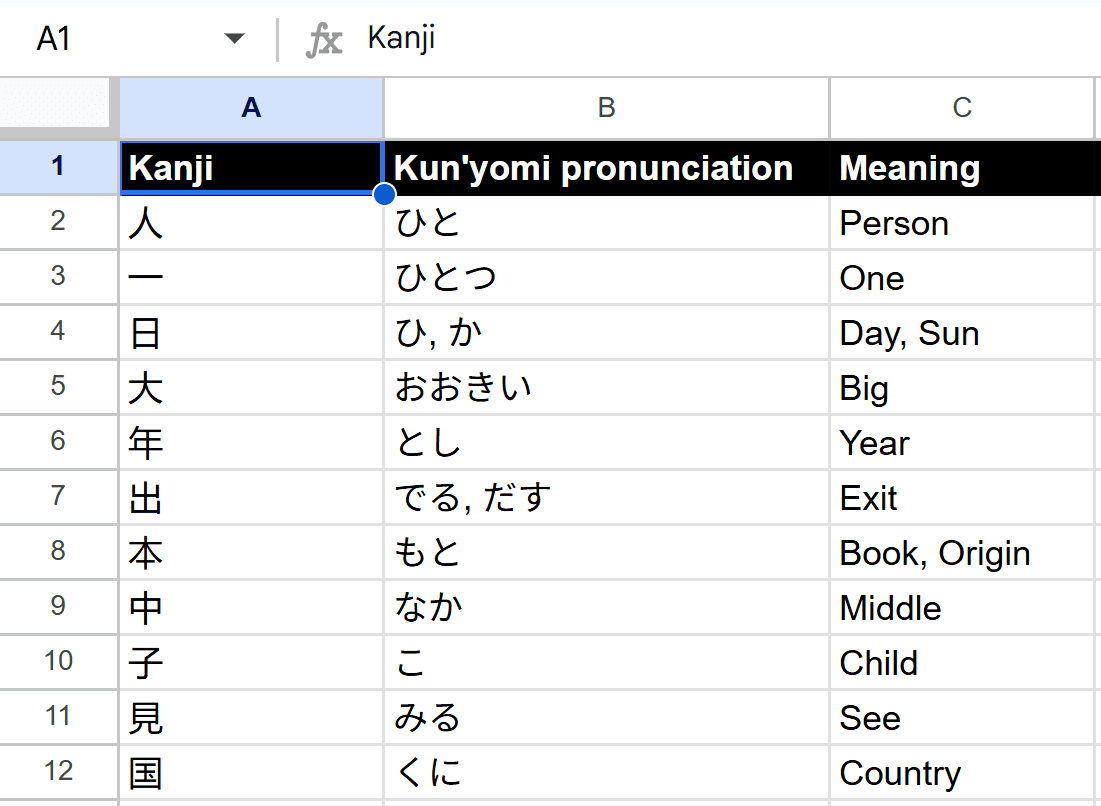
My vocabulary sheet contained structured data:
Column A: Kanji
Column B: Kana
Column C: English meaning
I also maintained a separate sheet formatted as a printable practice grid. The layout required:
Row 1: Kanji
Row 2: Kana
Row 3: English
Rows 4–6: Blank cells for writing practice
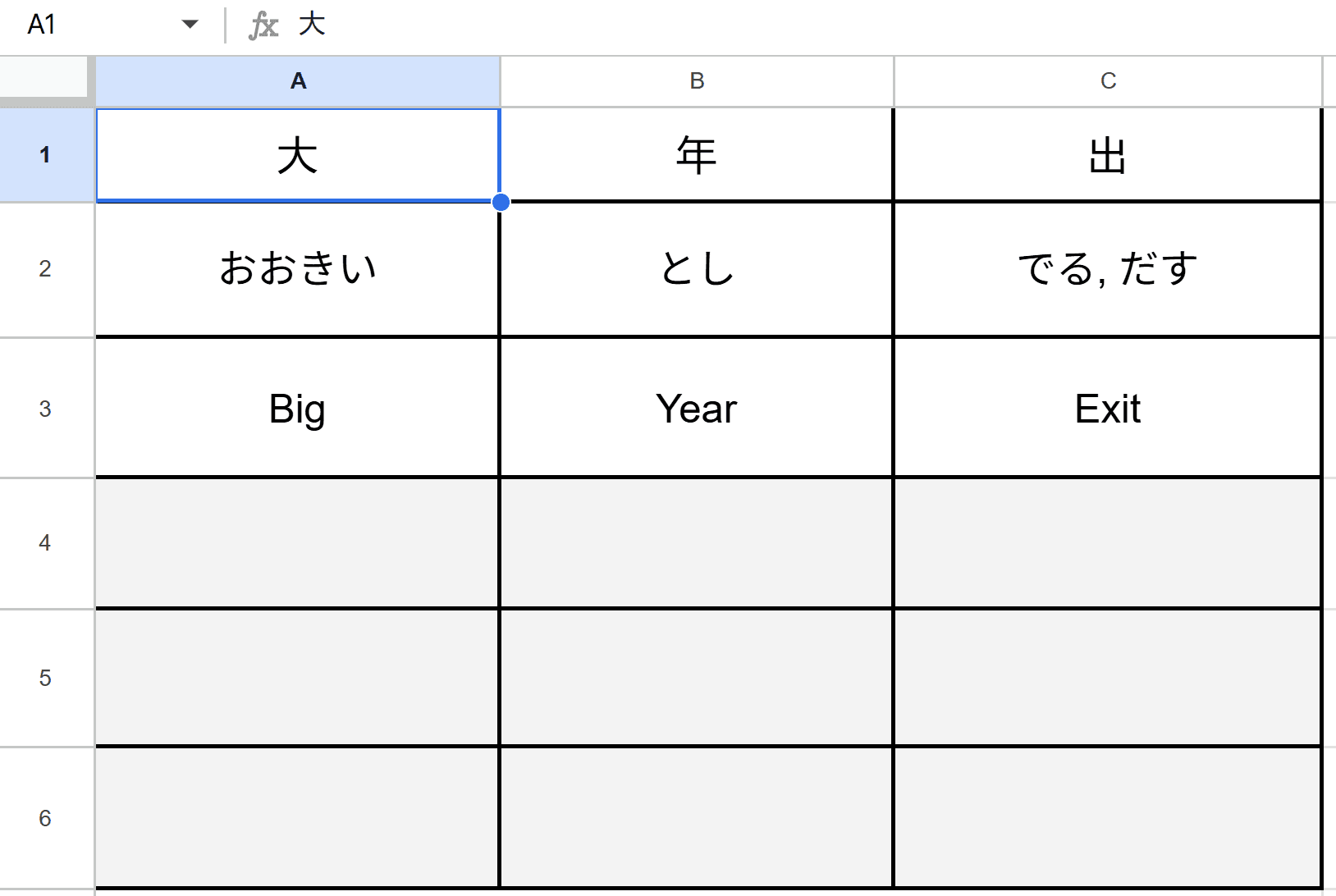
Each time I wanted a new worksheet, I had to manually copy three rows of vocabulary into the grid. This worked well but became tedious to manually update. I figured there was some way to automate and sure enough I found that Google Apps provided a scripting environment that could solve my problem.
Accessing Google Apps Script
Google Apps Script can be accessed directly from a Google Sheet:
Open the spreadsheet.
Go to Extensions → Apps Script.
This opens the script editor in a new tab, where custom functions and automation scripts can be written and executed.
From there, functions can be run manually using the built-in execution controls. The script runs within Google’s managed environment and has access to services like SpreadsheetApp, which exposes spreadsheet APIs.
Because Apps Script uses modern JavaScript, standard language features such as arrays, loops, and objects behave as expected, while Google-specific services provide structured access to spreadsheet data.
The Script
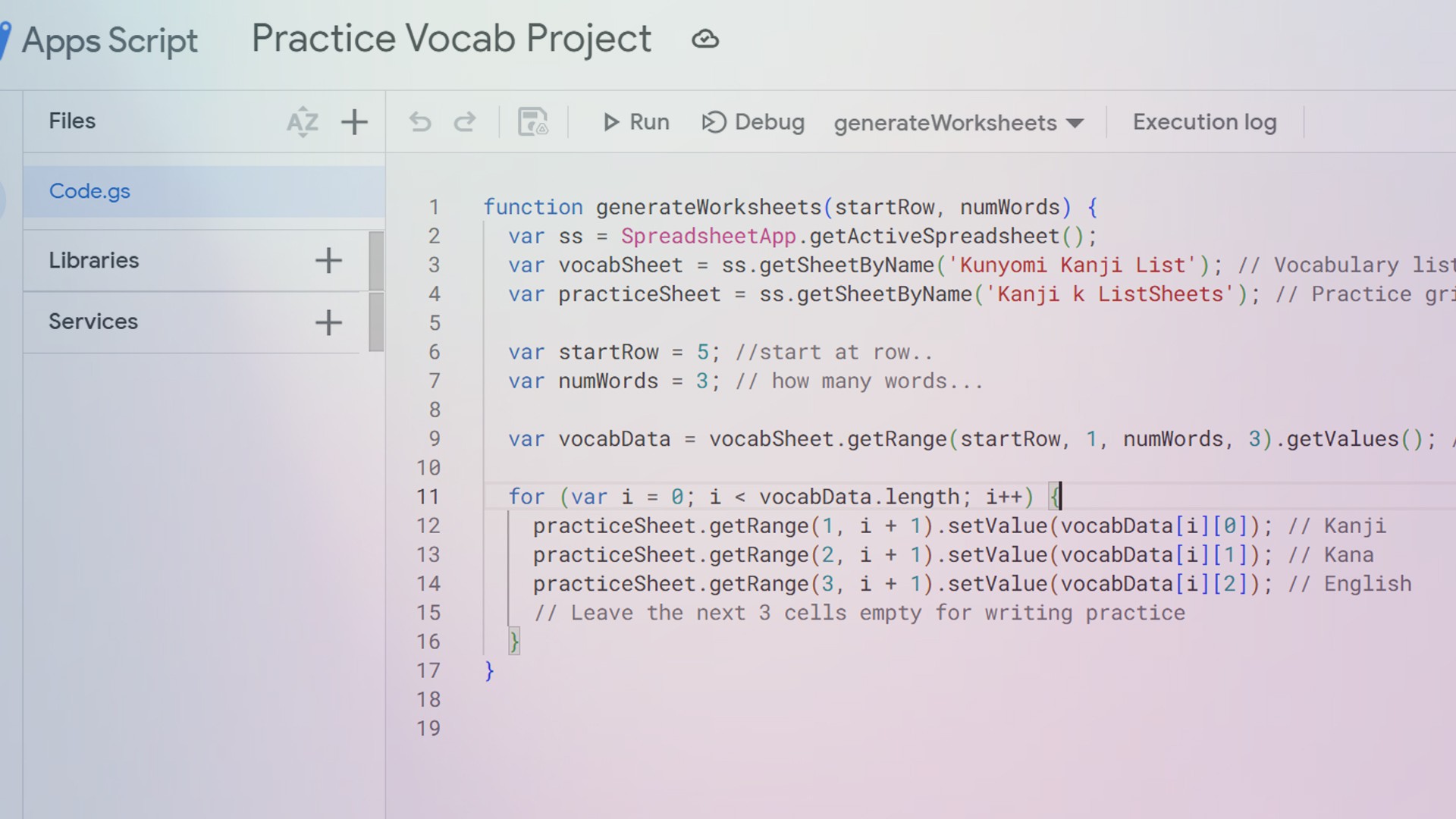
Here is the core function:
The script:
Accesses the active spreadsheet.
Reads structured vocabulary data starting at a specified row.
Pulls a defined number of words.
Writes kanji, kana, and English into the formatted practice sheet.
Leaves additional rows empty for handwriting repetition.
The key call is:
This retrieves a 2D array of values from the sheet, which can then be iterated over and written into the practice grid.
Because getValues() returns a matrix, each word is accessed as:
A quirk is that the environment immediately invokes the function, similar to a IIFE so in this case I just hardcoded the arguments instead of passing them to the function.
Other Posts

What I Shared with Students About Time Management
Virtual session and Q&A with high school students on practical approaches for focus and consistency.
UNIX terminal command cheatsheet
Commonly used commands that I tend to forget
Automating Language Practice Worksheets with Google Apps Script
Turning structured spreadsheet data into printable study materials
Let’s Connect
I'm always open to new projects, collaborations, and conversations. Reach out today!